

CAD File Validation Tool
WADEPS can only accept and store for analysis the data elements defined by Chapter 10.118 RCW and the AGO Law Enforcement Data Collection Advisory Group.
For CAD data, we can accept only the following five incident-related data elements for each call-for-service:
For CAD data, we can accept only the following five incident-related data elements for each call-for-service:
Check Your Data File
Review the required Excel headers for CAD data and remember to remove any extra tabs in your Excel file. Download and use our file validation tool before you submit CAD data in the WADEPS Reporting Tool.
Get the Validation Tool
First, open the free online WADEPS GitHub resource.
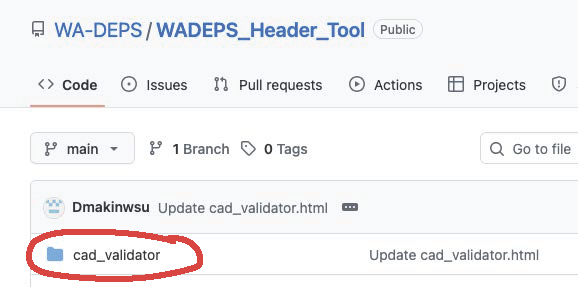
1. Click on the blue folder labeled “cad_validator”.
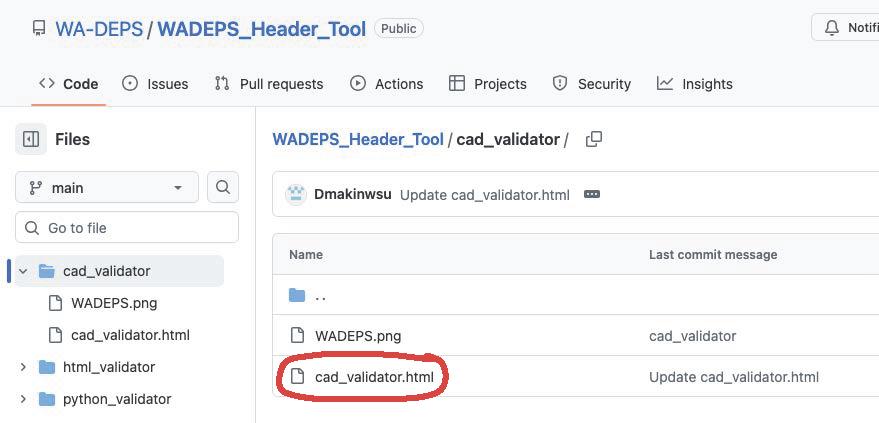
2. Click on the file icon labeled “cad_validator.html”. The HTML code for the validator will appear in the main window.
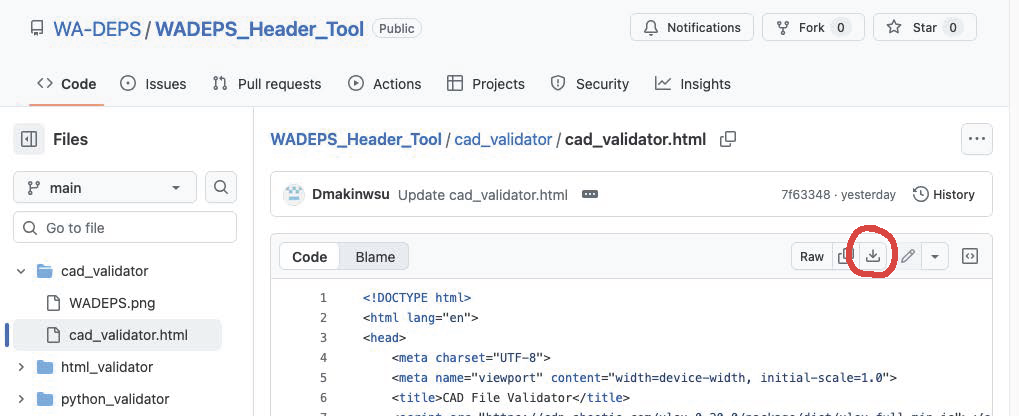
3. In the upper right of the main window, click the “download” icon (the downward arrow pointing into an open box). The HTML file should automatically download to your computer with the name “cad_validator.html”.
4. Save the HTML file on your local computer in the location you prefer. You may now close the WADEPS GitHub resource.
4. Save the HTML file on your local computer in the location you prefer. You may now close the WADEPS GitHub resource.
Next, on your computer:
1. Find the locally saved “cad_validator.html” file on your computer.
2. Double-click the file name to open it.
3. The CAD File Validator tool should open in a new window or tab in your default browser.
2. Double-click the file name to open it.
3. The CAD File Validator tool should open in a new window or tab in your default browser.
Finally, follow the on-screen instructions to check your CAD data file:
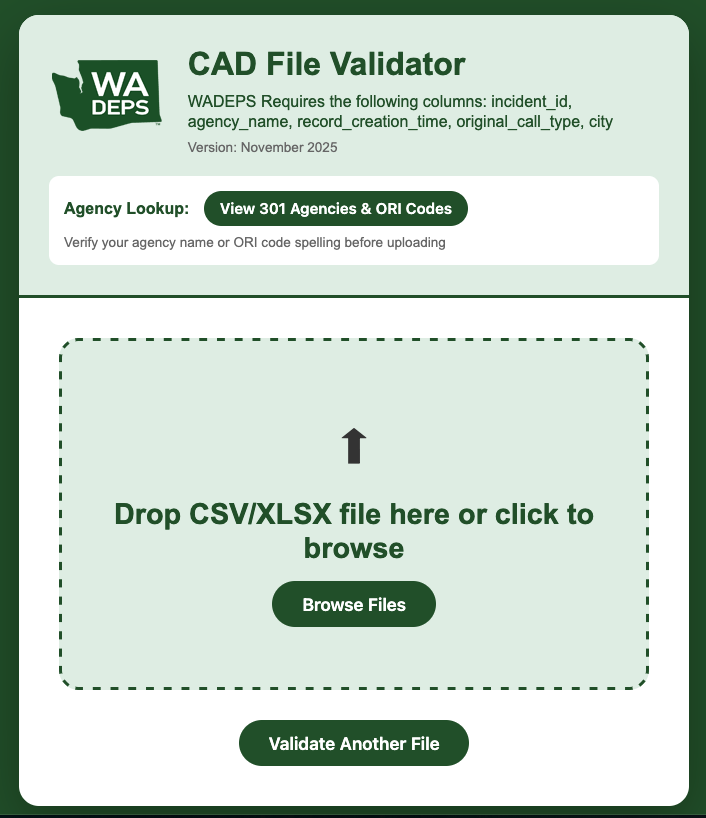
1. Use the “browse” button to find your current CAD file or drag-and-drop your CAD data file into the validation tool window.
2. The validation process will begin automatically and should only take a few seconds.
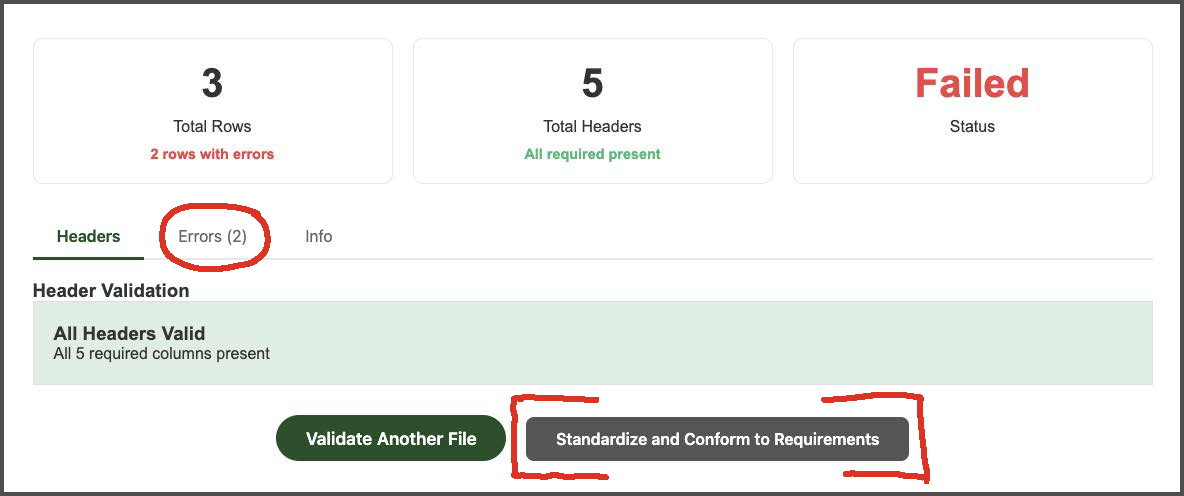
If “PASSED” is displayed in green in the lower right of the window, no corrective action is needed. Log into the WADEPS Reporting Tool and upload your CAD data file.
If “FAILED” is displayed in red in the lower right of the window:
2. The validation process will begin automatically and should only take a few seconds.
If “PASSED” is displayed in green in the lower right of the window, no corrective action is needed. Log into the WADEPS Reporting Tool and upload your CAD data file.
If “FAILED” is displayed in red in the lower right of the window:
* The “Headers” tab in the lower left indicates any errors in the required header spelling and format.
* Click on the “Errors” tab in the lower left to see details of other rows which failed and the specific errors.
* Click on the gray “Standardize and Conform” button at the bottom of the screen to see suggestions for corrections.
* Clicking on “Download Corrected File” will implement the suggested changes and download a corrected file. You must review and revalidate this file before uploading it to the Reporting Tool.
* Revise your file and repeat the validation process until all records pass.
Customer Support
WADEPS representatives are on hand to answer your questions and provide assistance for any aspect of WADEPS.
If you would like live assistance, the WADEPS team is available every Wednesday and Thursday morning from 9:00–10:00 a.m. via Zoom. Complete the quick registration to receive the link and join the call at any time during the hour.
You may also use our online form to request email-based support or to request a dedicated customer support meeting for your agency.
If you would like live assistance, the WADEPS team is available every Wednesday and Thursday morning from 9:00–10:00 a.m. via Zoom. Complete the quick registration to receive the link and join the call at any time during the hour.
You may also use our online form to request email-based support or to request a dedicated customer support meeting for your agency.